Hyper Realistic Ragdoll Controls: PC Keys Explained
Learn Hyper Realistic Ragdoll controls for PC, including spawning, grabbing, throwing, Body Scan, and reviving dummies. Master the keys and experiment.
Jump to
What Are the PC Controls?
Grab a dummy, send it flying, and inspect the damage without hunting through menus. Hyper Realistic Ragdoll controls put spawning, reviving, scanning, and your character’s ragdoll toggle within a few key presses. Learn these inputs so you can move smoothly between setting up an experiment and seeing what happened.
| Input | Action | What it does |
|---|---|---|
| G | Spawn | Creates a new dummy. |
| R | Revive | Restores an inactive dummy. |
| V | Body Scan | Opens the interface for examining a dummy’s injuries. |
| C | Fall/Recover | Makes your character fall over or recover. |
| Left mouse button | Grab | Grabs a dummy for direct interaction. |
| Mouse wheel | Adjust distance | Changes the distance between you and the grabbed dummy. |
| Right mouse button | Throw | Throws the dummy you are holding. |
C controls your own character’s fall and recovery; R revives a dummy. Keep that distinction in mind when someone ends up on the ground.
These shortcuts cover the core sandbox interactions on PC. Weapons, recovery tools, vehicles, and environmental machinery add more ways to interact with the world.
Official page: Hyper Realistic Ragdoll (roblox.com)
How to Grab, Move, and Throw Dummies
Use the left mouse button to grab a dummy, then adjust its distance with the mouse wheel. While holding it, you can swing it around or use the right mouse button to throw it.
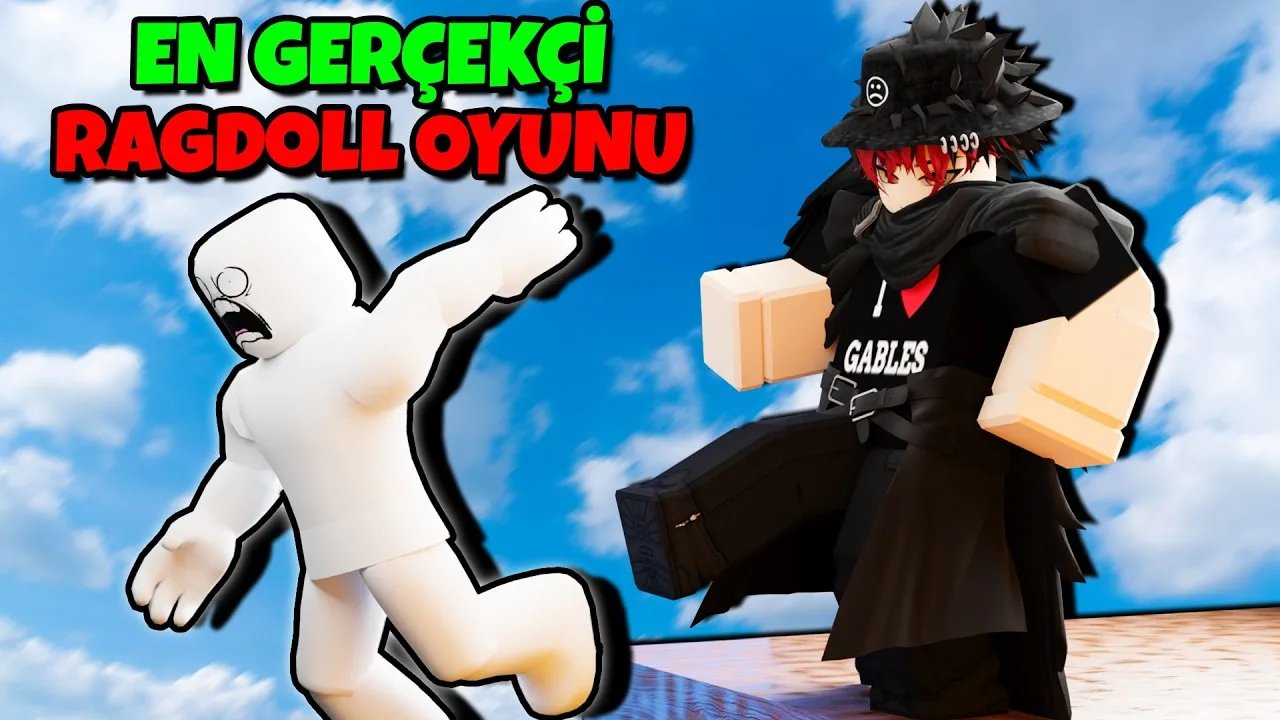
Practice in an open area before moving beside buildings or machinery. This gives you room to watch the dummy’s movement and landing without nearby objects immediately interrupting the throw.
Try the interactions in this order:
- Press G to create a dummy.
- Grab it with the left mouse button.
- Scroll the mouse wheel to change how far away you hold it.
- Swing it while holding it, or right-click to throw it.
- Press V to inspect the resulting injuries.
Grabbing is useful for positioning dummies beside the map’s interactive objects, including the giant fan, cannon, and crusher. Walls, towers, and trees also break apart, giving you destructible surroundings to experiment with.
Change one part of your setup at a time. Keep the location the same while adjusting the holding distance, for example, so you can compare the resulting movement.
How to Use Body Scan
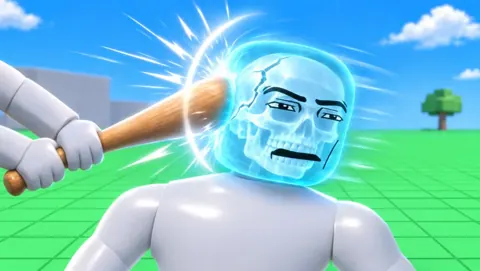
Press V to open Body Scan, the X-ray-style interface that lets you examine individual body parts and identify broken bones.
Where an impact lands matters because each body part reacts independently. A dummy’s movement can give you clues before you open the scan:
- An injured leg can cause limping.
- A broken leg can leave the dummy crawling.
- A broken arm hangs limp.
- A head impact can cause fainting.
Inspect the dummy after a single interaction before adding another impact. That makes it easier to connect a visible injury with the action that caused it.
For a focused experiment, compare a leg impact with an arm impact and check both results through Body Scan. You’ll see how damage changes movement in different ways.
Watch the dummy’s behavior, too. Dummies can stumble, stand back up, help one another, and fight back after being hit.
How to Revive Dummies and Unlock Recovery Tools
Press R to revive an inactive dummy. This lets you continue interacting with an existing character after it goes down.
You can also use recovery equipment. The Medic category contains three tools unlocked through KO progression:
| Medic tool | KO requirement |
|---|---|
| Defibrillator | 100 KOs |
| Heal Dart | 110 KOs |
| Medkit | 150 KOs |
Use these tools to restore dummies during your experiments. Check their condition with Body Scan before recovery if you want to examine the damage first.
The Next indicator on the right side of the screen shows your upcoming unlock and your progress toward it. Watch that indicator while earning KOs to track when additional equipment becomes available.
Keep G and R straight when setting up another interaction: spawning creates a new dummy, while reviving restores an inactive one. Use R when you want to continue with the same character and G when you want another dummy in the scene.
Continue with
 Hyper Realistic Ragdoll Progression: KO Unlock GuideMaster Hyper Realistic Ragdoll progression with KO milestones, tool unlocks, and farming tips. Plan your route from starter weapons to the Storm Staff.
More in Getting Started
Hyper Realistic Ragdoll Beginner Guide: Start Here
Use this Hyper Realistic Ragdoll beginner guide to learn PC controls, scan and revive dummies, earn KO unlocks, and explore vehicles and disasters safely.
Hyper Realistic Ragdoll Worth It? Gameplay and Costs
Is Hyper Realistic Ragdoll worth it? Explore its physics, Body Scan, KO unlocks, and Robux purchases to decide what to try before spending on extra tools.
Continue exploring
Hyper Realistic Ragdoll How To Ragdoll: PC Controls
Hyper Realistic Ragdoll how to ragdoll guide: learn the PC fall and recover control, grab and throw dummies, scan injuries, and use tools to revive them.
Hyper Realistic Ragdoll Settings: Speed and Gravity
Adjust Hyper Realistic Ragdoll settings for movement speed and gravity, learn PC controls, and use Body Scan to compare dummy experiments step by step.
Join the community
Official channels for news, updates and player help: